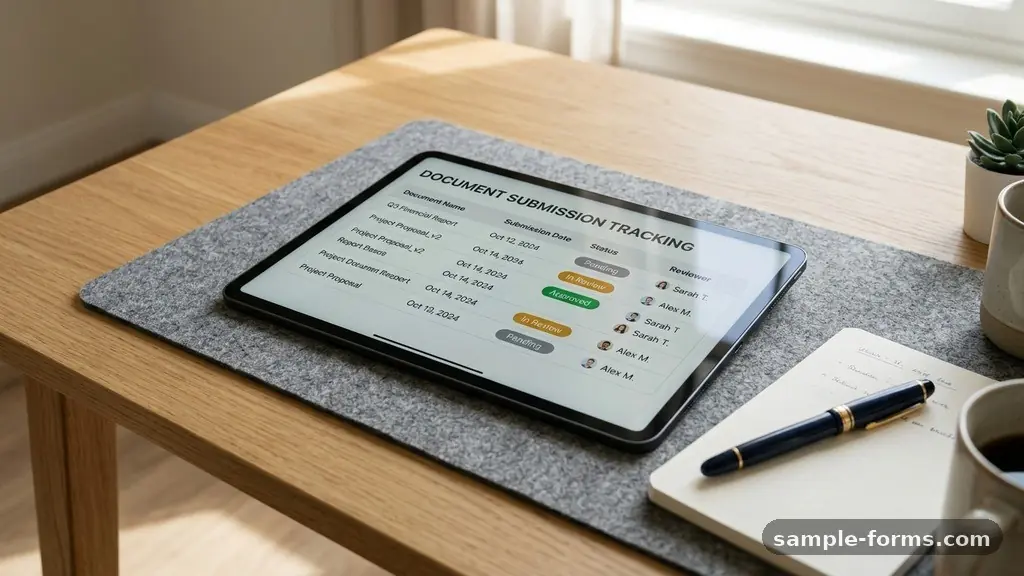
Making a Document Submission Tracking Form is the most effective way to eliminate the chaos of email attachments and misplaced files. By centralizing your incoming data, you stop chasing down missing information and start focusing on the actual review process.
Whether you are managing small team projects or large-scale regulatory filings, creating a structured intake system transforms how you handle the document lifecycle. This article provides a clear roadmap for building a system that saves time, reduces errors, and keeps your project pipeline moving forward without the usual administrative friction.
Core Components of an Efficient Tracking System
The foundation of any successful tracking setup is a clear understanding of the information you need to collect. You must identify exactly what metadata is required to distinguish one submission from another.
Common fields include the submitter’s name, the submission date, the project category, and a unique reference number. Without these, your database becomes a messy pile of files that are impossible to sort or filter.
Consistency is your biggest ally when you are making a Document Submission Tracking Form. If you allow users to input dates or project codes in whatever format they prefer, your data will be unusable for reporting.
Implement strict formatting rules, such as using a date picker or a dropdown menu for project names. This small step ensures that your data remains clean from the moment it enters your system.
You should also consider the storage location for the files themselves. While a form can collect the data, the actual document needs to live somewhere secure and accessible.
Using cloud storage platforms like Google Drive or SharePoint allows you to link the file directly to the submission entry. This creates a reliable audit trail that holds up even when team members change or projects evolve.
Choosing the Right Platform for Your Needs
Not all tools are created equal when it comes to managing document intake. If you need something quick and free, Google Forms is often the first stop for many teams.
It integrates well with Google Sheets, allowing you to see your submission data in a familiar spreadsheet database format. However, its capabilities are limited if you require complex data validation or multi-stage approval workflows.
For more sophisticated requirements, platforms like Airtable offer a much more dynamic environment. Airtable acts as a hybrid between a spreadsheet and a database, which is ideal for tracking the document lifecycle.
You can create different views—such as a calendar view for deadlines or a gallery view for visual assets—without ever needing to re-enter your data. This flexibility is a significant upgrade over traditional flat-file systems.
If your process involves high-volume intake or requires advanced security features, tools like Jotform are worth investigating. These platforms offer specialized features such as HIPAA compliance, which is essential for certain industries.
They also provide robust file upload fields that can handle large attachments without slowing down the user experience. You can find more information on data security standards through the National Institute of Standards and Technology to ensure your setup meets necessary regulations.
Structuring Your Data for Future Reporting
A well-designed form does more than just collect files; it creates a structured dataset for analysis. Think about what you want to know about your process six months from now.
Do you need to track how long it takes to approve a submission? Are you interested in which departments are sending in the most incomplete documents?
By including specific fields that capture this information, you turn your tracking form into a management tool. Use hidden fields or pre-filled URL parameters to capture context that the user doesn’t need to see.
For example, if you send out a link to a specific project manager, you can embed their ID into the form link. This eliminates the risk of human error when users are asked to manually enter their department codes.
Organizing your data effectively allows you to spot bottlenecks before they become major problems. If you notice that a specific type of document is consistently failing validation, you can update your form instructions. This iterative approach to making a Document Submission Tracking Form means your system gets stronger and more efficient the longer you use it.
Implementing Data Validation and Quality Control
Data validation is the practice of ensuring that the information entered into your form meets your specific requirements. Without it, you will constantly have to email submitters to ask for corrected files or missing details. Most modern form builders allow you to set rules on specific fields to prevent this from happening.
For instance, you can set a file upload field to only accept specific file types, such as PDF or DOCX. You can also set a maximum file size to ensure your storage limit isn’t reached by one massive document. These guardrails protect your system from junk data and save you hours of manual cleanup time later in the process.
Consider the following list of essential validation rules to include in your form:
- Required Fields: Mark all mandatory information so the form cannot be submitted incomplete.
- Email Format: Use built-in regex or field settings to ensure submitters provide a valid contact email.
- File Type Restrictions: Limit uploads to approved formats to maintain consistency in your archives.
- Date Limits: Prevent users from selecting past dates if you only accept future-dated submissions.
- Dropdown Menus: Use these instead of text boxes to ensure data entries match your internal coding system.
Automating Your Submission Workflow
Manual tracking is a recipe for burnout and missed deadlines. Once you have a solid form, the next step in making a Document Submission Tracking Form is to automate the follow-up.
You can use tools like Zapier integration to connect your form to your email, project management software, or messaging apps. This ensures that the right people are notified the second a new document arrives.
Automation also allows you to handle version control more effectively. When a user submits an updated version of a document, your system can automatically overwrite the old one or create a new entry with a version number.
This keeps your records clean and ensures that your team is always looking at the most recent file. You can also trigger automated emails to the submitter to confirm receipt.
This type of professional communication builds trust with your stakeholders. They know their document didn’t just disappear into a void, and they have a record of when they submitted it. Automated notifications can also include links to your FAQ page or additional instructions, reducing the number of support emails you receive.
Using Conditional Logic for Complex Processes
Conditional logic allows your form to change based on the user’s previous answers. This is a powerful way to keep your form clean and prevent users from feeling overwhelmed by unnecessary questions. If a user selects “Legal” as a department, the form can display specific legal-related fields that wouldn’t appear for someone in “Marketing.”
This approach reduces the cognitive load on the person submitting the document. It ensures they only see questions relevant to their situation, which leads to higher completion rates and better data quality. When you are making a Document Submission Tracking Form, consider how you can use logic to hide irrelevant sections.
You can also use this feature to route submissions to different team members. For example, if a document requires a high-level security clearance, the form can route the notification to a specific manager. This keeps your internal workflows moving without requiring a central coordinator to manually sort and forward every single submission.
Comparing Common Tracking Approaches
Different organizations have different needs, and the right tool often depends on your budget and technical comfort level. The table below outlines the primary differences between popular approaches to building a submission system.
| Platform | Best For | Automation Level | Complexity |
|---|---|---|---|
| Google Forms | Simple, free intake | Basic (via Add-ons) | Low |
| Airtable | Complex, data-heavy projects | Advanced | Medium |
| Jotform | Professional, secure forms | High | Medium |
| Custom Web App | Enterprise-grade needs | Unlimited | High |
Each of these options has a unique place in the market. If you are starting out, don’t feel pressured to build a complex custom application.
A simple spreadsheet database combined with a well-configured form is often enough to handle thousands of submissions. You can always migrate to a more advanced platform once your volume grows or your requirements become more sophisticated.
Addressing Frequently Asked Questions
How do I handle large file uploads safely?
Most form builders provide specific file upload fields that connect to cloud storage like Google Drive or Dropbox. To keep your system secure, ensure you set size limits and restrict file types to prevent malicious uploads. Always store these files in a private, access-controlled folder rather than a public link.
Can I track multiple versions of the same document?
Yes, you can achieve this by using a unique identifier, such as a project ID or a submitter’s email address, in your tracking database. When a new submission arrives, your automation tool can look for an existing entry with that ID and update it or archive the old version. This keeps your version control history clean and searchable.
How do I ensure regulatory compliance?
If you deal with sensitive data, you must choose a platform that explicitly offers compliance features, such as HIPAA or GDPR tools. Always review the vendor’s security policy and ensure that you are using encrypted storage. Limit access to the database to only the individuals who absolutely need to see the documents.
What if a user forgets to attach a file?
You can prevent this by setting the file upload field as “required” in your form settings. If they try to submit without a file, the form will display an error message and refuse to process the entry. This simple validation rule saves you the time of having to manually follow up for missing attachments.
How often should I audit my tracking form?
It is a good practice to review your form every quarter or whenever you notice a change in your project workflow. Check your data for common errors, ensure your dropdown options are still relevant, and verify that your automated notifications are still reaching the correct team members. Regular maintenance prevents your system from becoming outdated or cluttered.
Final Thoughts on Improving Your Workflow
Building a robust tracking system is a journey rather than a one-time project. As you gain experience making a Document Submission Tracking Form, you will naturally find ways to refine your fields and speed up your approval process.
The goal is to create a system that works for you, not against you. By focusing on clean data, clear validation, and thoughtful automation, you provide a better experience for everyone involved in your document lifecycle.
Start small by mapping out your current process on paper before you move to a digital tool. Once you have a clear picture of the steps, you can begin to build your form with confidence.
Remember to test your form from the user’s perspective to ensure it is as intuitive as possible. If you need help, feel free to reach out to your team for feedback on the submission experience.